

AI assistants are digital helpers powered by artificial intelligence that you can configure for specific tasks and needs.
A personal assistant has the knowledge of a language model and additionally keeps in memory the information you feed it. This lets it consistently account for context that matters to you when handling tasks.
Benefits of GPTunneL™ AI assistants
Personalization. You can tailor an assistant to your needs and tasks by feeding it the information it needs and giving it specific instructions.
Time savings. A personal assistant always remembers the relevant context, so you don't need to brief it every time you reach out.
Privacy. GPTunneL™ lets you create private assistants for working with sensitive information.
Handling large volumes of data. Load a knowledge base into your assistant for fast search and analysis of the information you need.
Convenient switching. In GPTunneL™ you can easily pick and use different assistants, switching between them right in the chat with the model.
The goal of this article is to teach you how to create and effectively use personalized GPTs assistants in GPTunneL™.
Step-by-step guide to creating a personal GPTs assistant in GPTunneL™
Step 1. The "GPTs Assistants" section
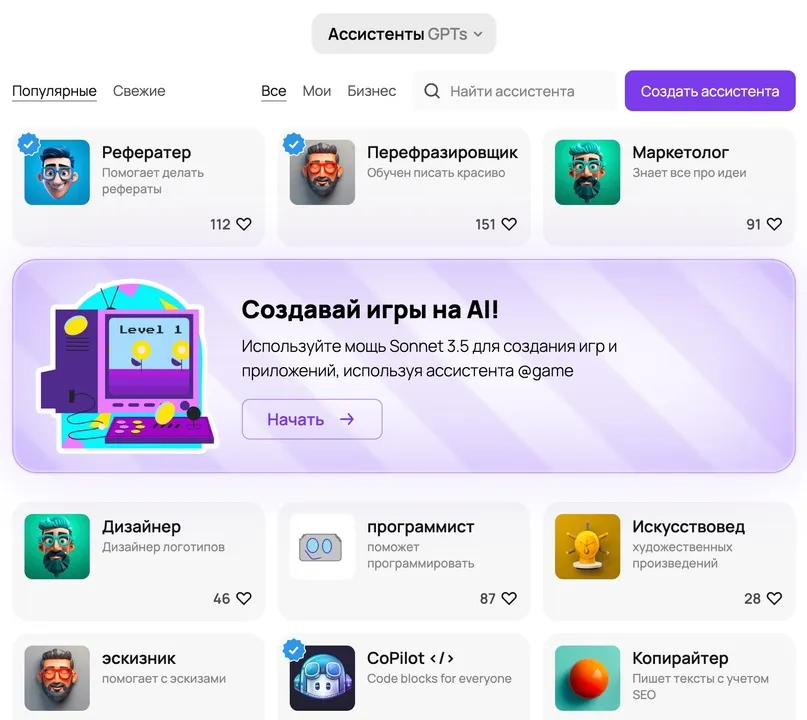
Go to the GPTs Assistants page. Here you'll see a list of available assistants along with tools for filtering and searching them.
Step 2. Creating a new assistant
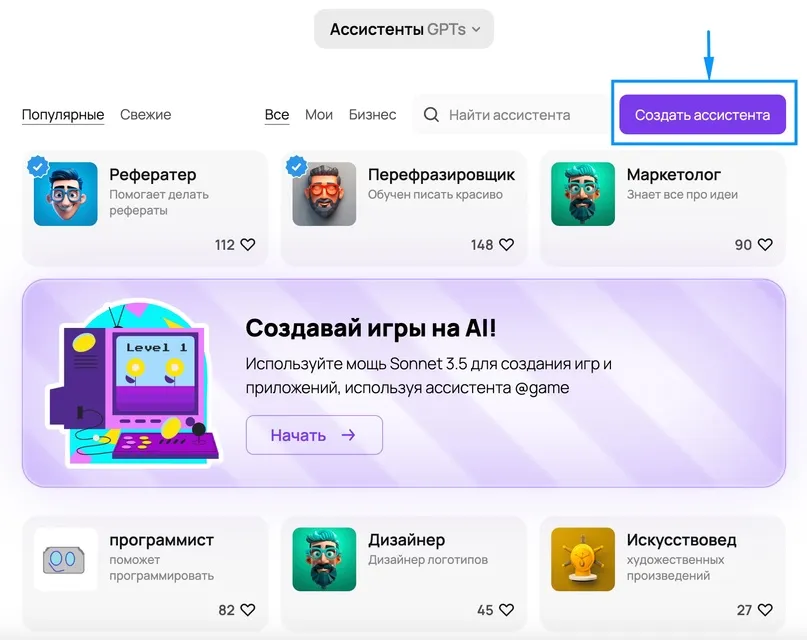
On the "GPTs Assistants" page, click the purple "Create assistant" button in the top right corner of the screen.
Step 3. Configuring assistant settings
After creating the assistant, you'll land on the "Settings" page.
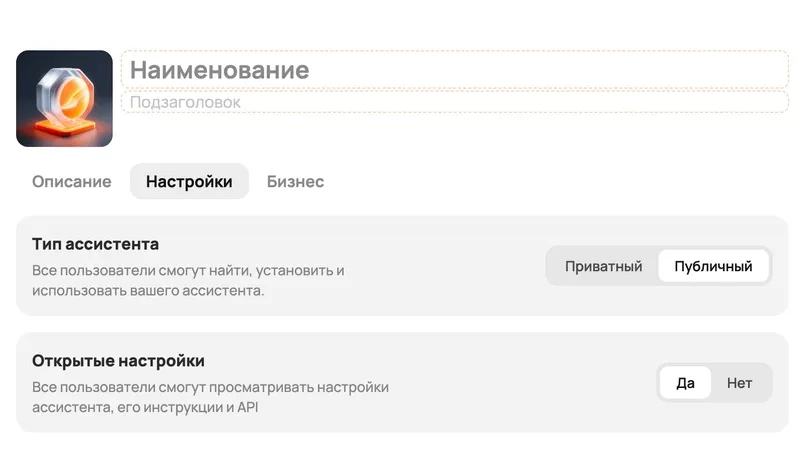
Here you need to fill in the following parameters:
Name and subtitle: enter your assistant's name and a short subtitle describing its functions.
Assistant type: choose between "Private" (available only to you) and "Public" (available to all users).
Open settings: decide whether you want the assistant's settings to be visible to other users. Choose "Yes" to make the settings public, or "No" to keep them hidden.
In the top left corner of the screen, you can change the assistant's avatar by uploading your own image or choosing from the suggested options.
Once these parameters are filled in, move on to choosing the model and writing the instructions for your assistant.
Choosing a model. In the "Default assistant model" section, choose a suitable model from the dropdown list.
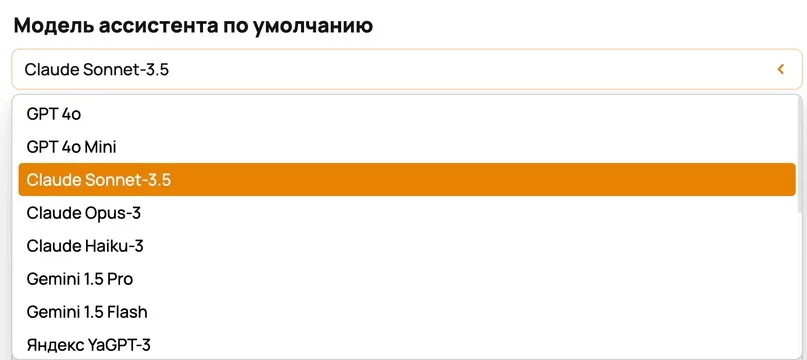
The cost of using an assistant depends on the model you choose. You can find detailed model pricing information on the pricing page.
You'll be able to use the assistant with any available model in chat, regardless of the choice you make here.
Assistant instructions. In the "Instructions for the assistant" field, enter a detailed description of your assistant.
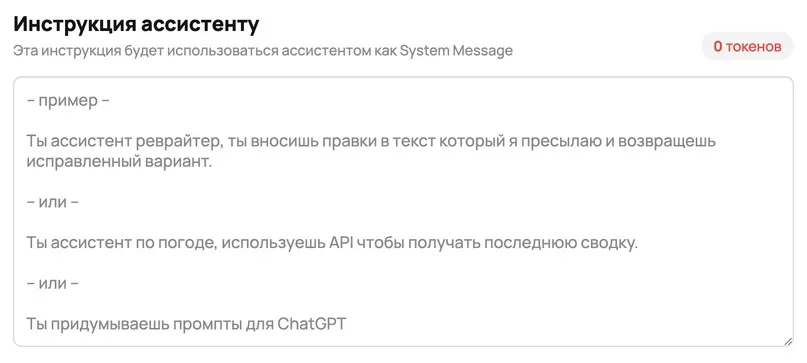
The assistant's instructions:
- Set the primary context for all of the assistant's interactions.
- Define the assistant's role (for example, copywriter, writer, analyst, etc.).
- Establish the basic rules and constraints for how the assistant works.
- Influence how the assistant interprets and responds to user requests.
The more precisely and thoroughly you describe the assistant's role and tasks, the more effectively it will be able to perform its functions.
We've already written a guide on "How to write an effective prompt for a neural network." The recommendations in that guide will help you write an effective instruction for your assistant.
Once you've set the assistant's instructions, move on to the API function settings.
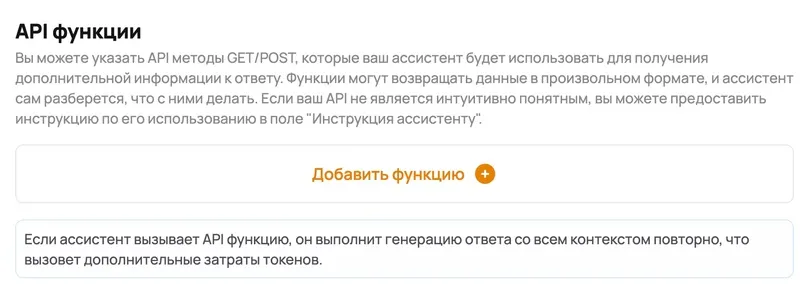
API functions let your assistant retrieve additional information from external sources to form more accurate and up-to-date responses.
Configuring API functions requires technical programming skills. If you don't have experience working with APIs, we recommend skipping this section.
Temperature. This parameter controls the diversity and creativity of the assistant's generated responses.
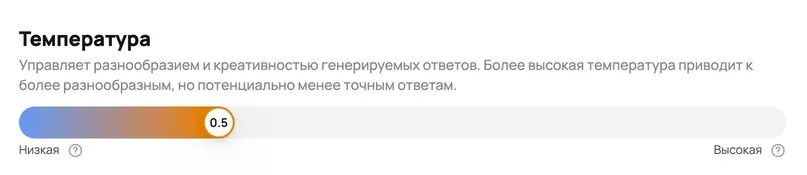
Recommendations for choosing temperature:
- For tasks that require precision (such as data analysis), use a low temperature.
- For creative tasks (such as generating ideas), a higher temperature works better.
Vector databases. This tool lets you expand your assistant's knowledge by adding specific information for more accurate and relevant responses.
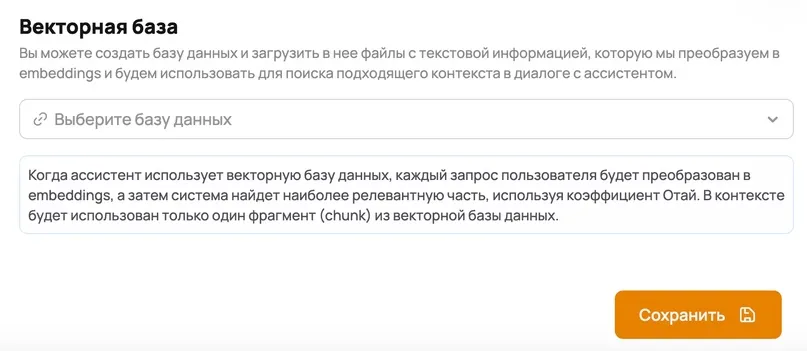
How the "Vector database" works:
- Upload prepared files with the information you need into the database.
- The system converts this information into a special format.
- When chatting with the assistant, the system finds and uses the most relevant information from the database.
We've prepared a video explaining how the vector database works and giving a step-by-step guide to creating an assistant that uses a knowledge base. You can watch the video in the YouTube video.
After configuring all the parameters, don't forget to save your changes. To do this, click the orange "Save" button at the bottom of the screen.
Once the settings are saved, your assistant is ready to work!
3 useful GPTs assistants in GPTunneL™
Besides letting you create your own assistants, GPTunneL offers a wide selection of ready-made AI helpers built by our team and by other users.
"Proofreader" is especially useful when preparing important documents, letters, articles, or any other texts where correctness is essential. Use it for a final check before sending or publishing your text.
What can the assistant do?
- Fix spelling and punctuation mistakes
- Improve sentence style
- Correct grammatical inaccuracies
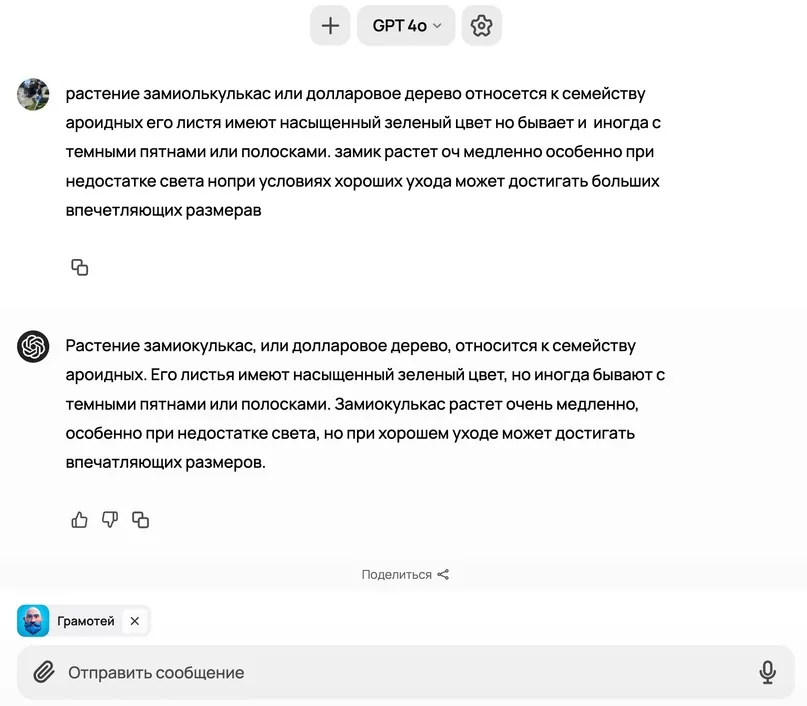
To save tokens, we recommend turning off context when using this assistant in the chat settings.
"Website Analysis" is an assistant that runs on the cost-efficient GPT-4o Mini model. It uses an API and lets you quickly analyze and extract information from websites.
How to use it:
- Send the assistant a website address (URL).
- Ask a question or specify what information you need to find.
- The assistant will analyze the site and provide an answer.
The assistant processes only one link at a time. It doesn't interact with page elements — it only reads and analyzes textual information.
An example of using the assistant is available at this link.
"Translator" is an assistant that instantly translates text between languages.
It helps you quickly and accurately translate words, phrases, sentences, and even entire texts.
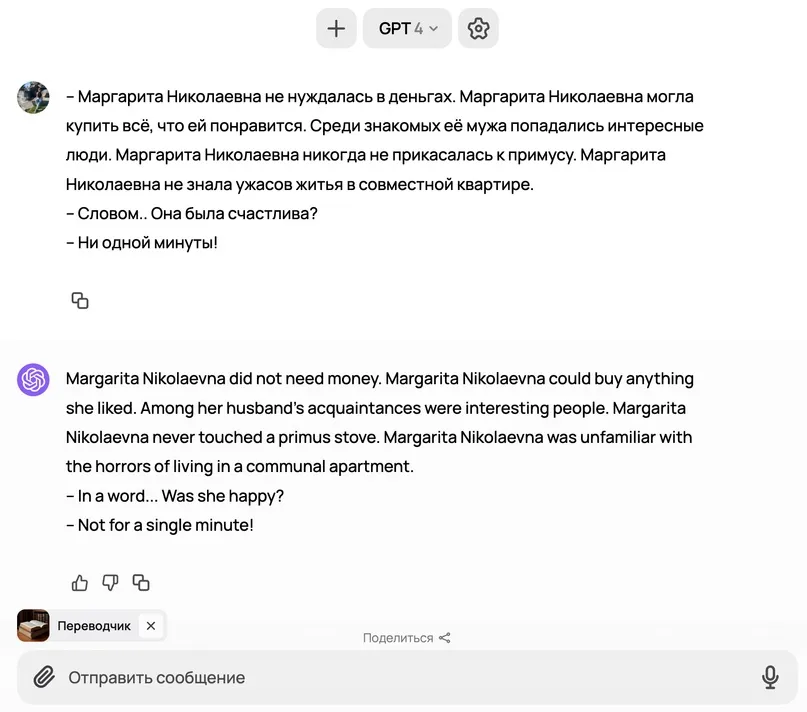
Our service offers many other useful assistants for all kinds of tasks. We recommend heading to "GPTs Assistants" and trying out different helpers yourself. You're sure to find something useful.