
The Blend feature in Midjourney lets you create unique images by mixing several source pictures or combining an image with a text prompt. Let's look at two main ways to use this feature.
2 ways to use the Blend feature in Midjourney
Method 1: Blending several images
- Open the Settings Wizard in Midjourney
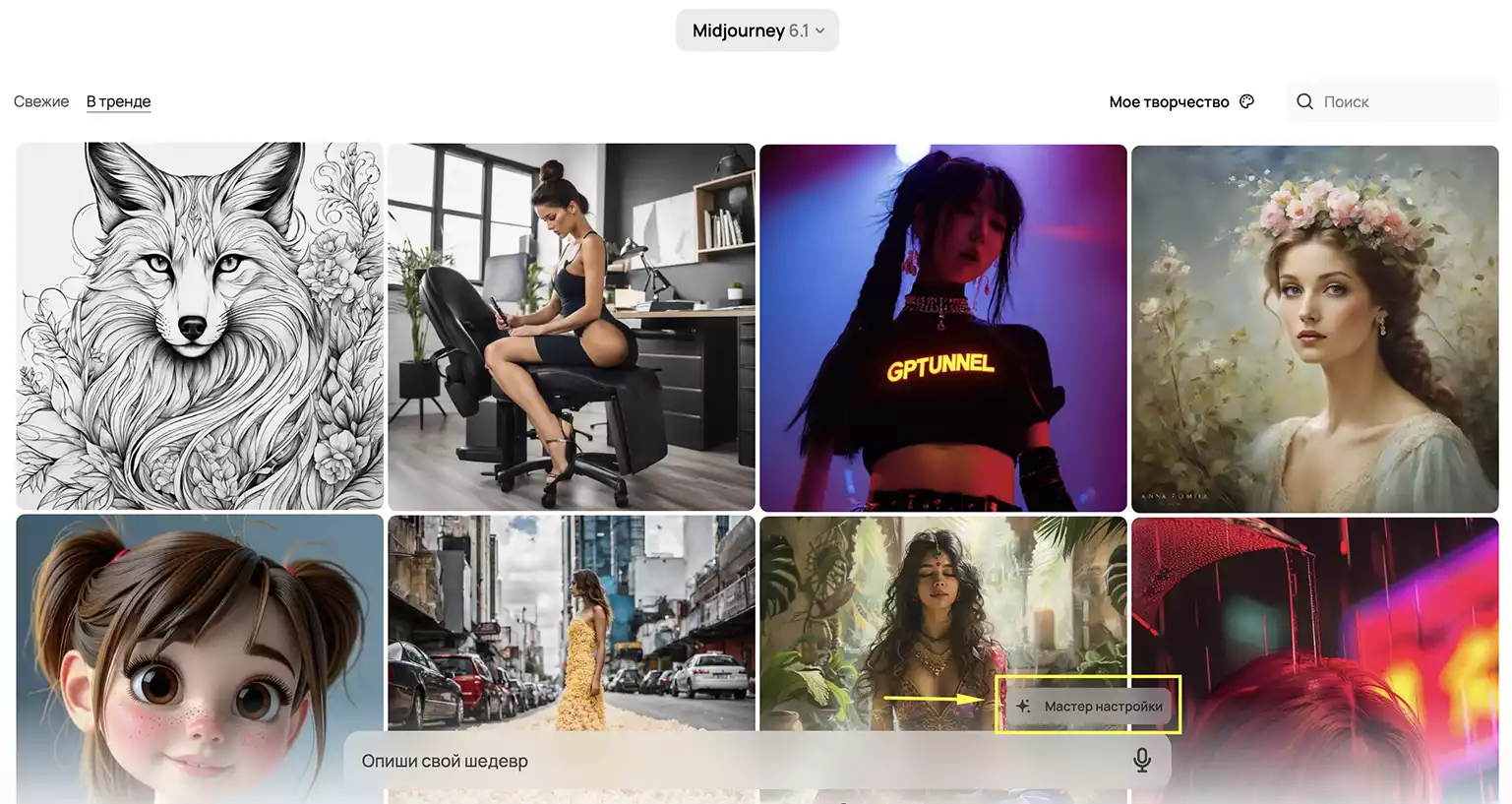
Midjourney in GPTunneL
- Find and select the "Image Blending" option (the Blend feature)
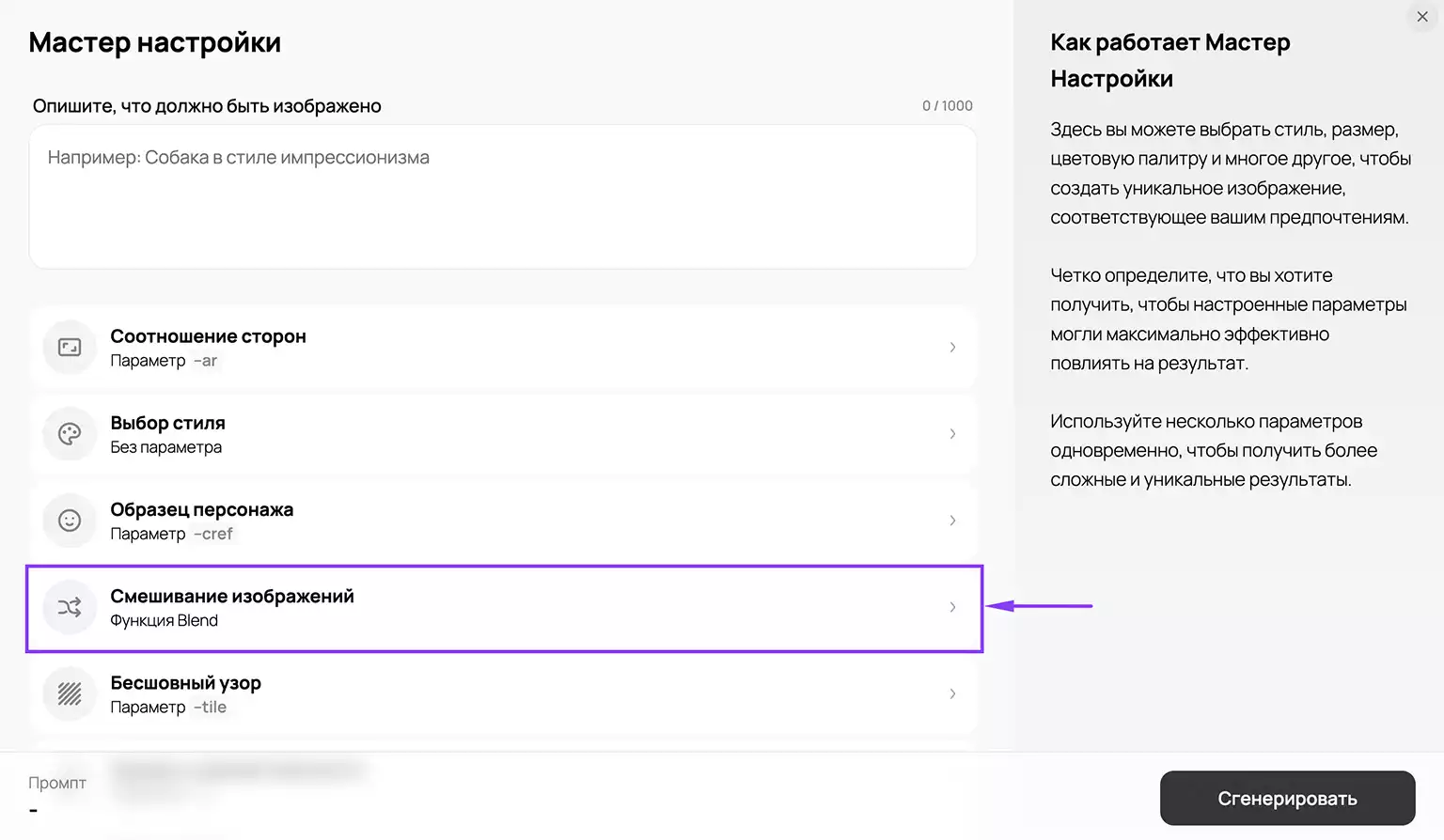
The Blend feature in Midjourney
- Upload 2 to 5 images using one of the following methods:
-
Drag and drop files directly into the upload area, or click "Upload file" and select images.
-
Paste a single image link into the dedicated field. Click "Apply". Repeat the action for other image links.
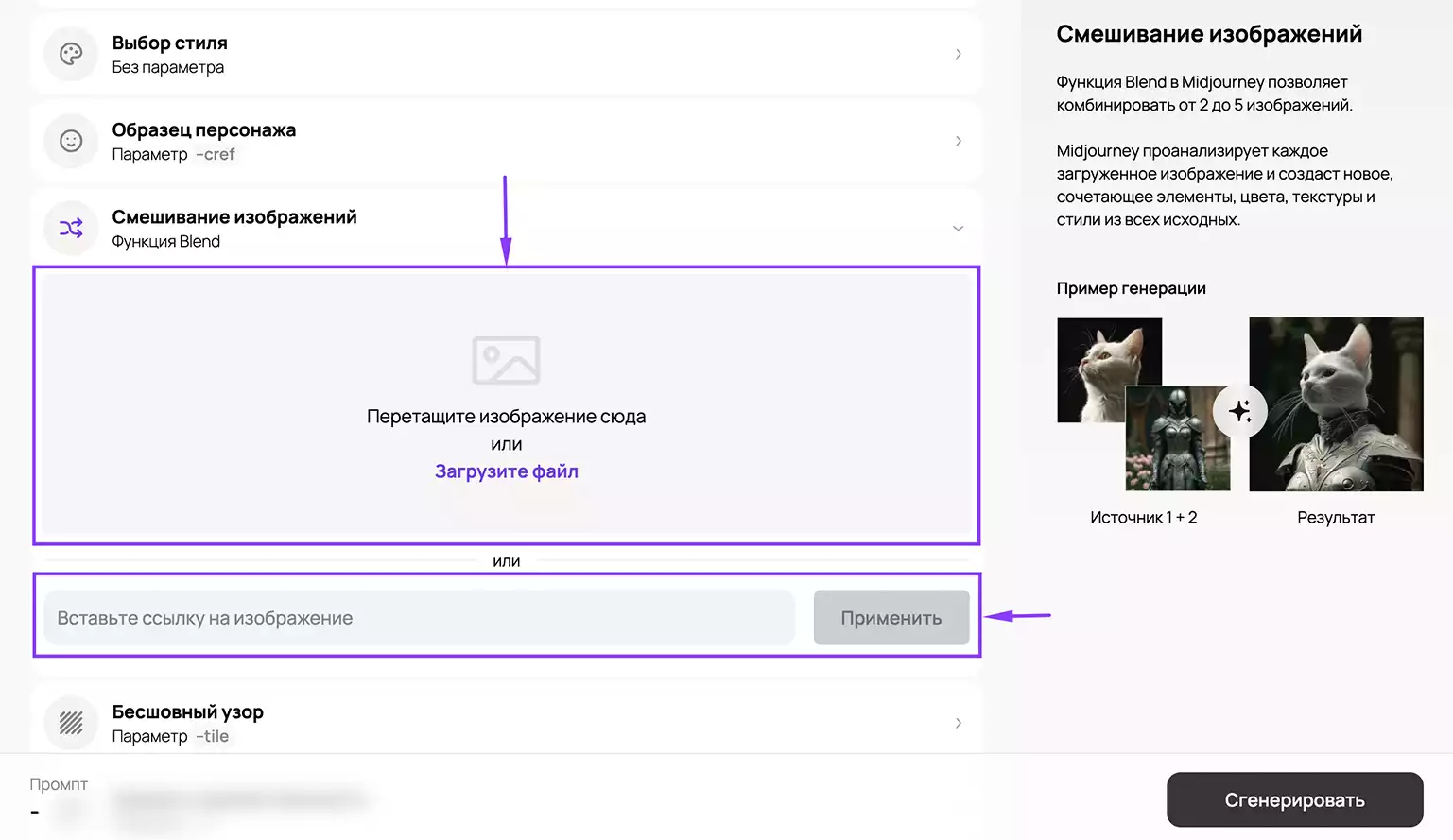
Upload images or image links to blend
- Click "Generate" to get the result.
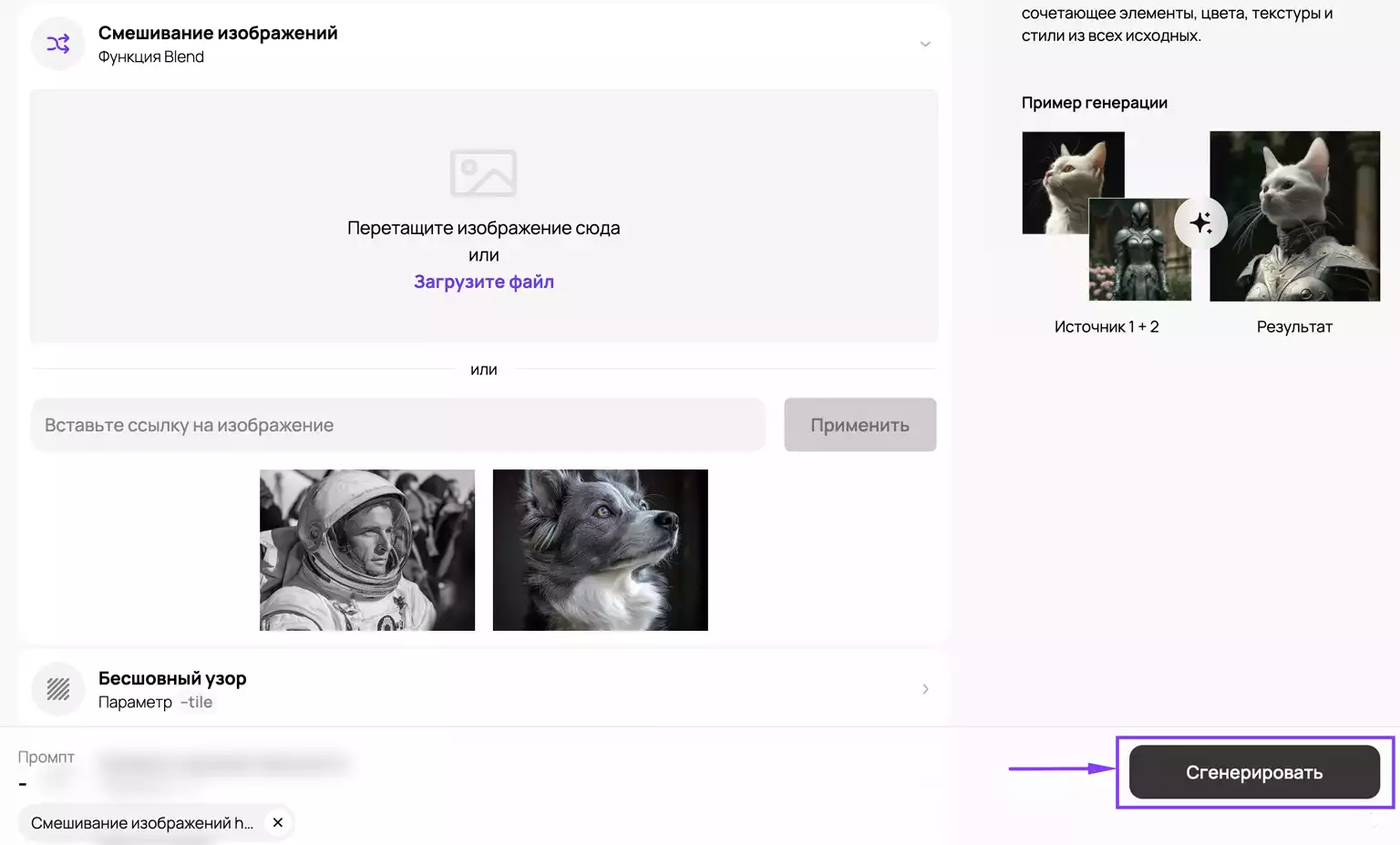
Midjourney will analyze the uploaded files and create 4 image variants combining the elements, colors, textures, and styles of all the source pictures.
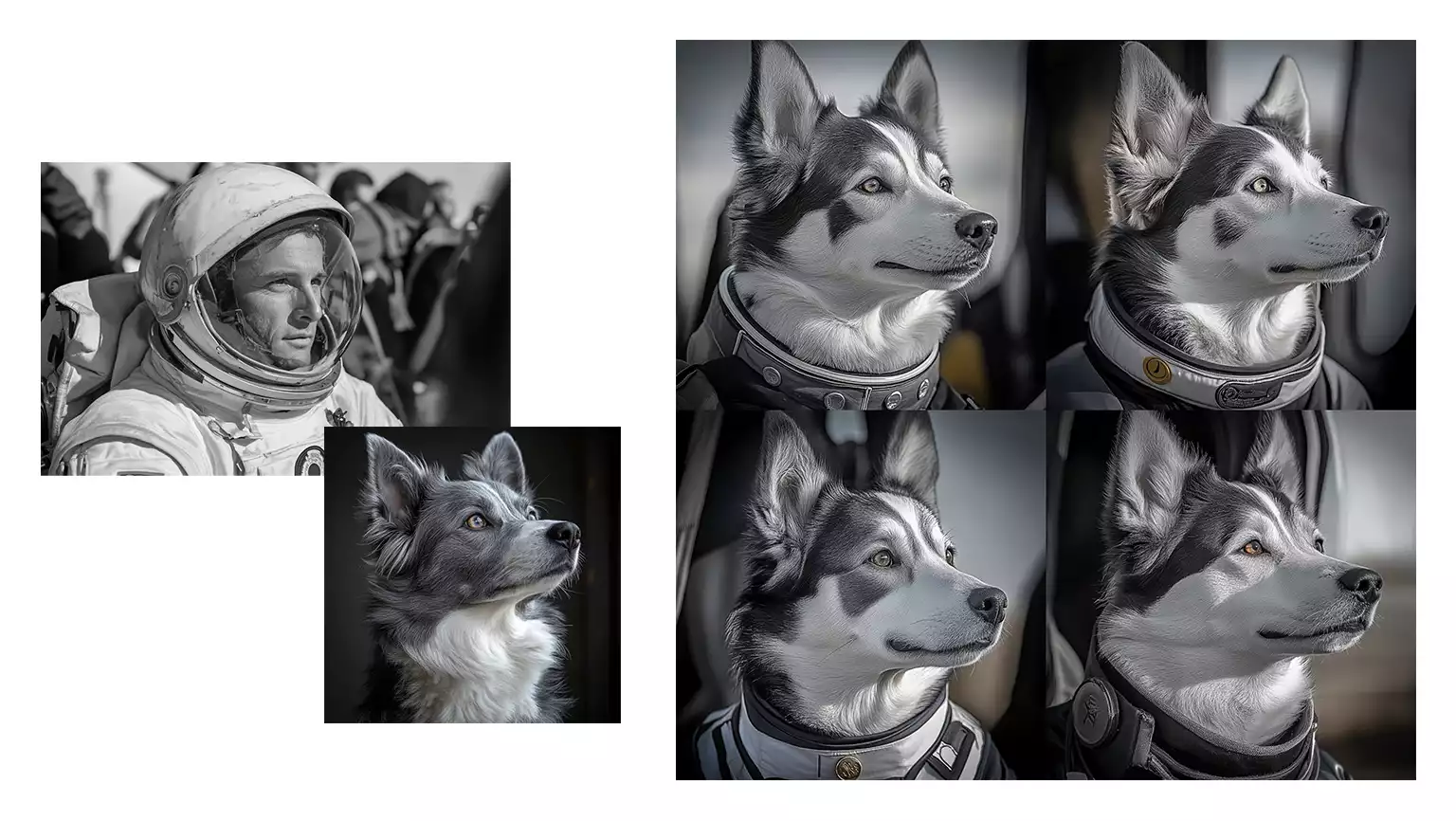
We were aiming for an astronaut dog. What do you think of the result?)
Method 2: Combining an image with a text prompt
- In the "Image Blending" window, upload the source images.
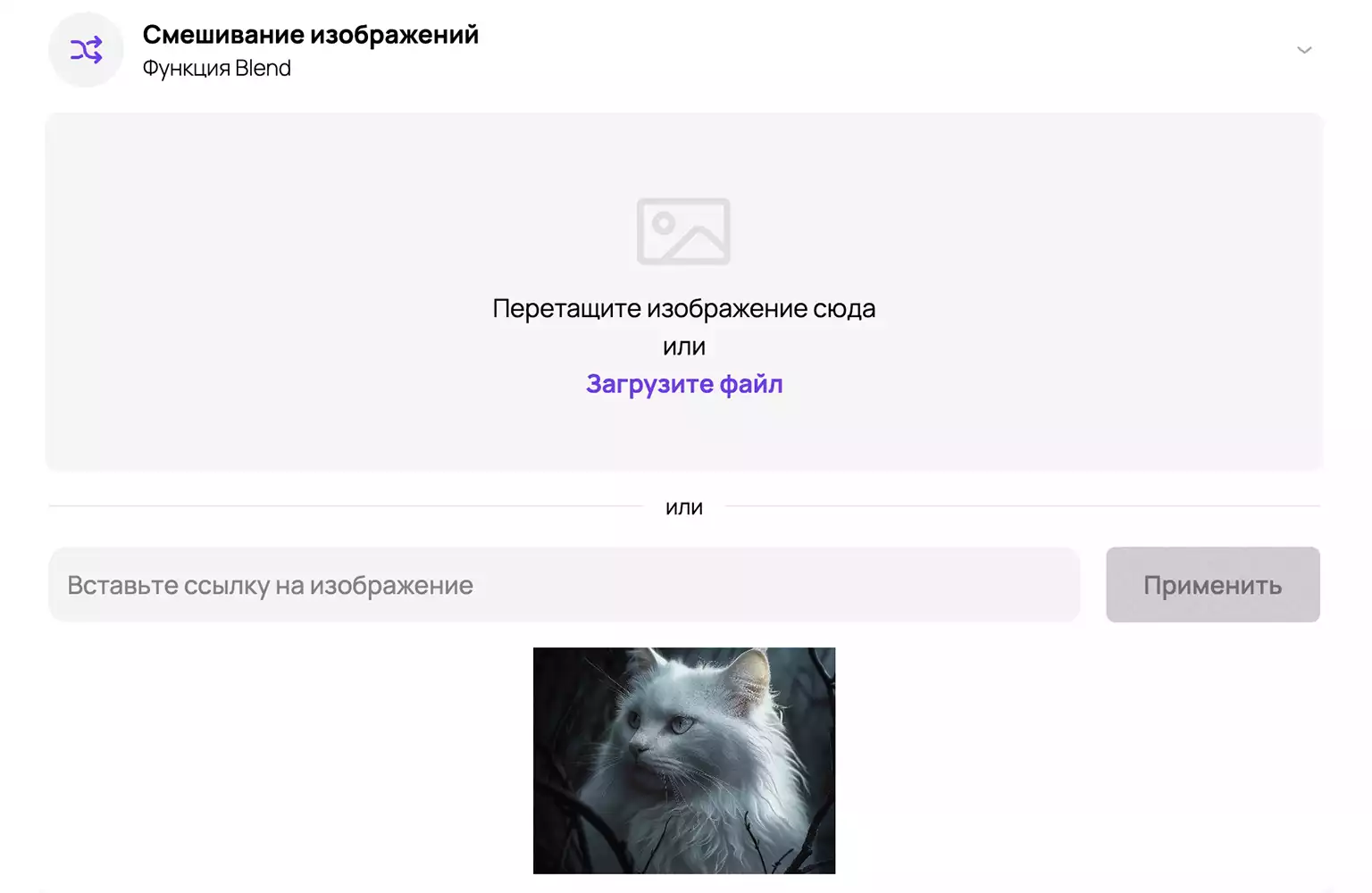
We uploaded an image of a white cat
- In the prompt field, describe what you want to add or change in the source image. For example, change the style, mood, or environment, or add extra elements.
- Click "Generate" to get the result.
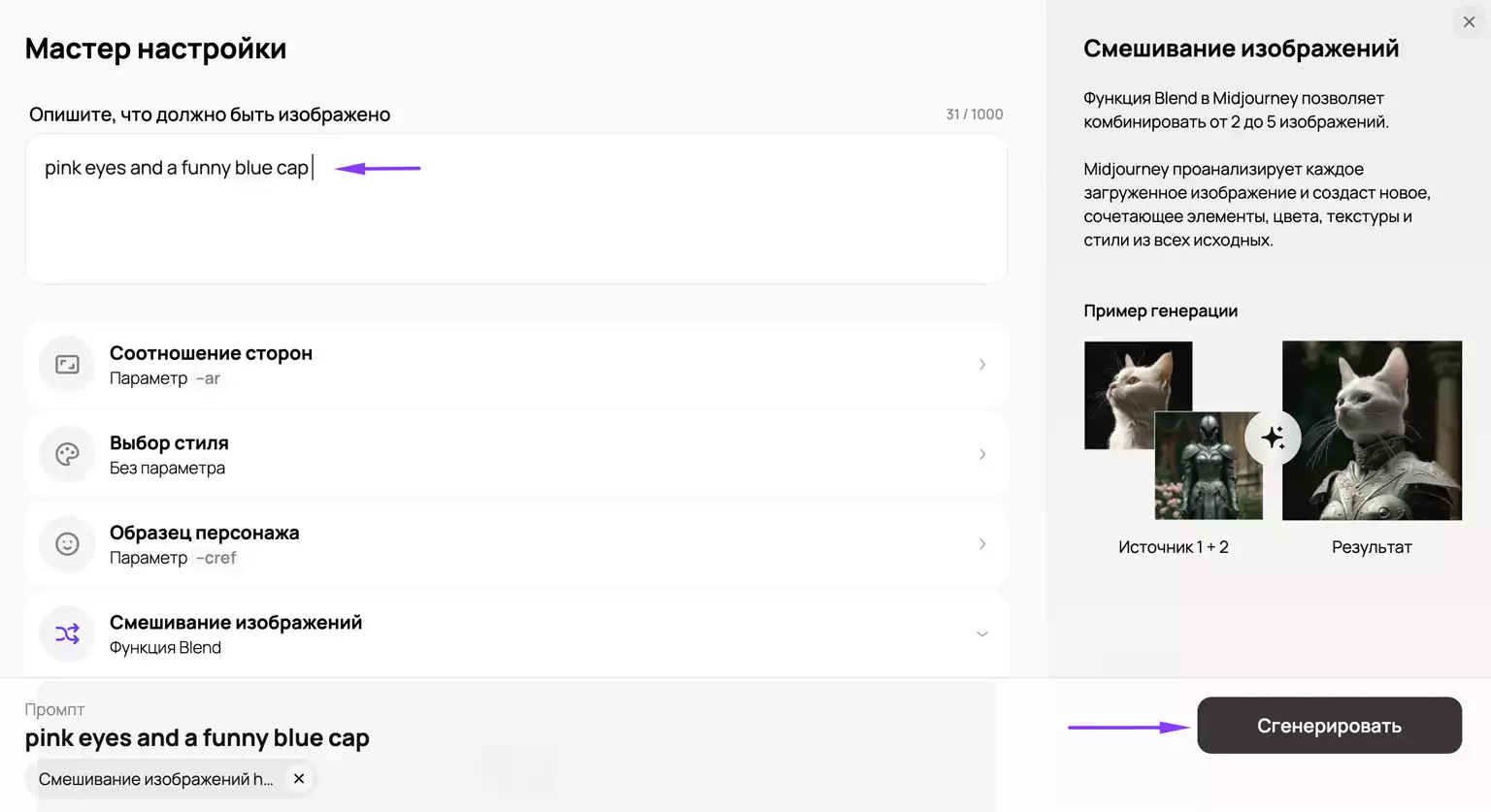
Let's give the cat pink eyes and a funny blue cap. Prompt: "pink eyes and a funny blue cap"
Midjourney will create a new image that combines the source picture with elements from your text description.
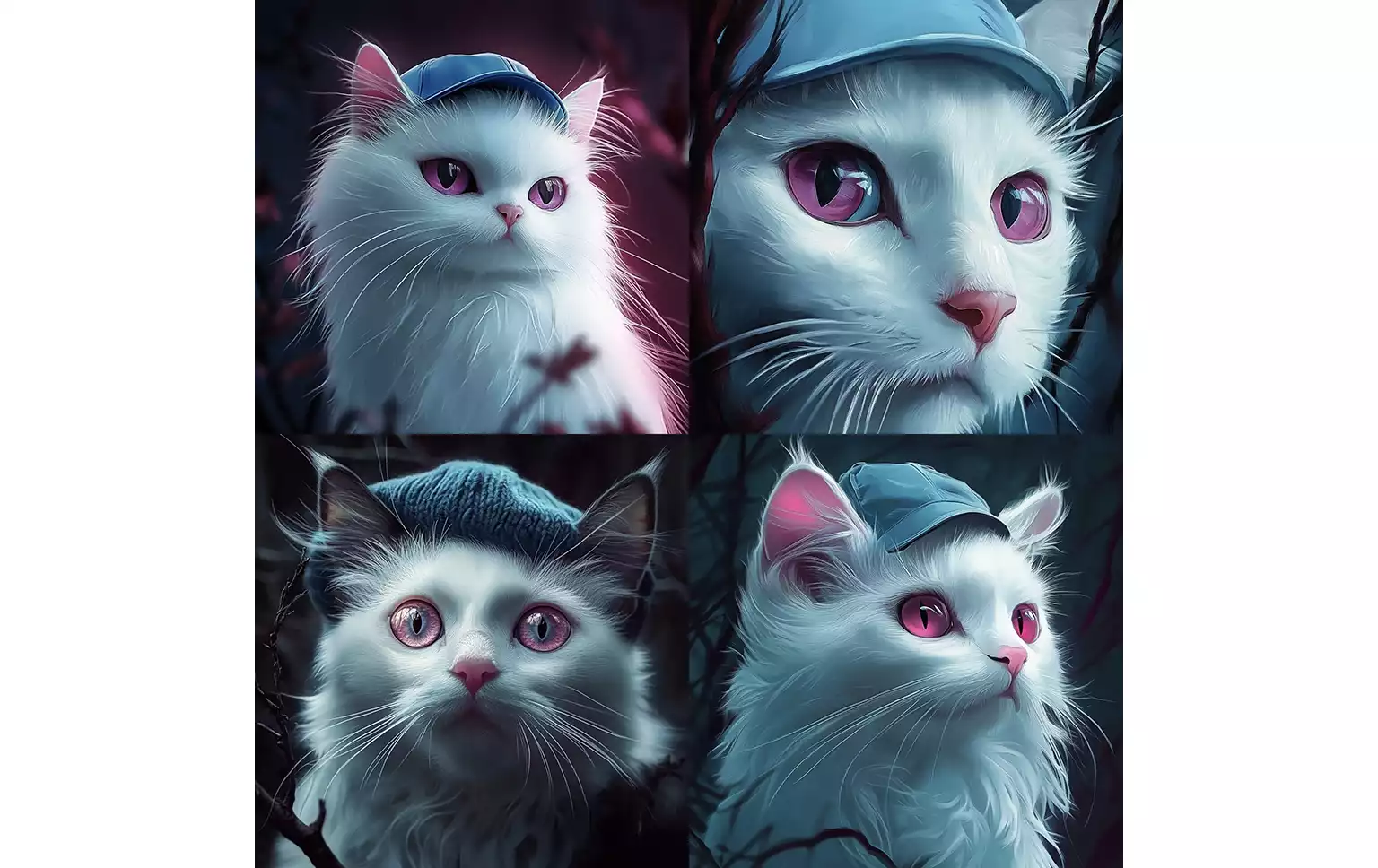
Result of blending an image and a text prompt
Additional settings
In our service, you can add extra parameters to your request through the Settings Wizard.
For example, the --ar parameter lets you set the image's aspect ratio. By default, the generated image is a square 1:1 format, but you can choose other proportions to create wide or vertical images.
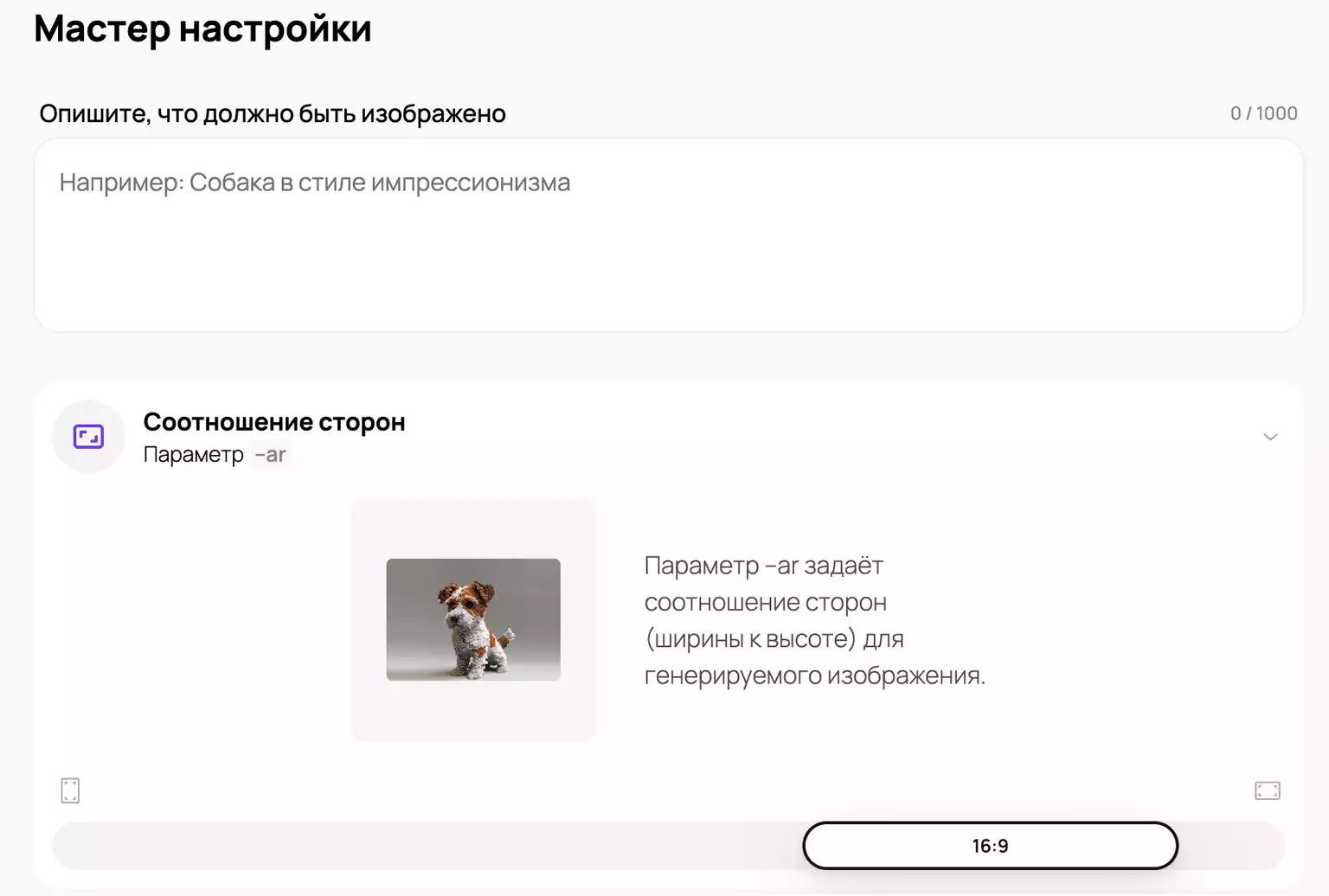
The --ar parameter in Midjourney
The --no parameter lets you exclude unwanted elements from the result. Simply specify what shouldn't appear in the final image: certain objects, colors, text, and more.
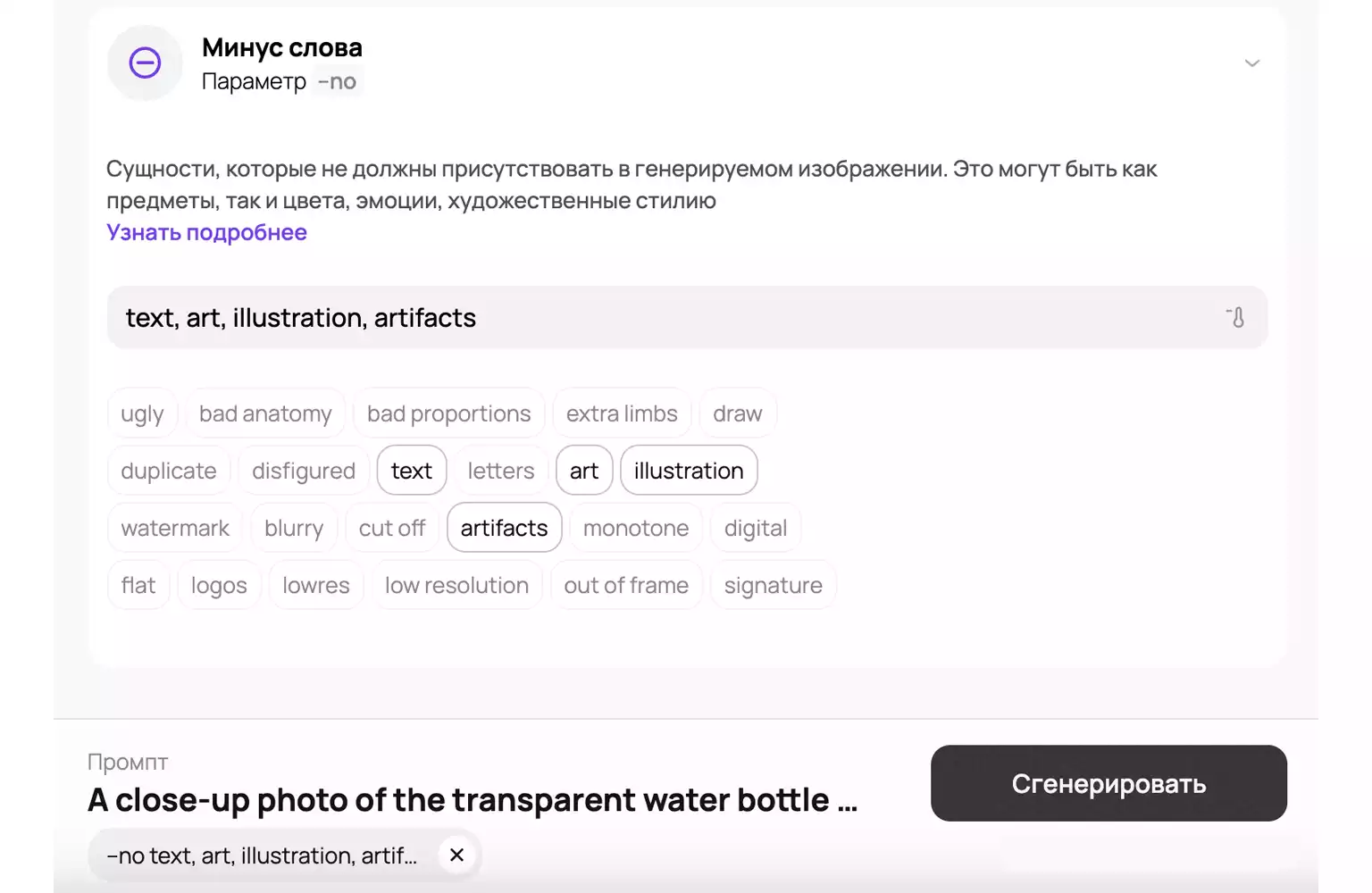
How to exclude unwanted objects from a Midjourney image?
Experiment with the settings in the Midjourney Settings Wizard! The right parameters will help you bring your ideas to life with precision and create exactly the image you had in mind.